
The Silent Frustration of a Lagging Screen
Have you ever sat down to finish an important project, only to find your computer moving like a snail? You click an icon, and you wait. You open a browser tab, and the spinning wheel of death appears. It is not just a technical problem; it is a test of your patience.
I know how it feels when your tools fail you. You have a deadline, your coffee is getting cold, and your PC decides to freeze. That tiny bit of lag starts to feel like a heavy weight on your shoulders. It ruins your focus and turns a simple task into a long struggle.
Most people think they need to buy a brand-new computer when things get slow. They believe their hardware is old and useless. But that is often not the case at all. Usually, the problem is just a messy and optimized operating system.
Your computer is like a car that has not been serviced in years. It is filled with "digital dust" and background tasks that eat up your power. You don't need a new car; you just need to tune the engine. We are going to do exactly that today.
Imagine waking up, hitting the power button, and being ready to work in seconds. Imagine clicking a heavy app and seeing it jump to life instantly. That feeling of a smooth, responsive machine is what we are aiming for here. Let's fix that lag and get your peace of mind back.
Rethinking Your Startup Routine
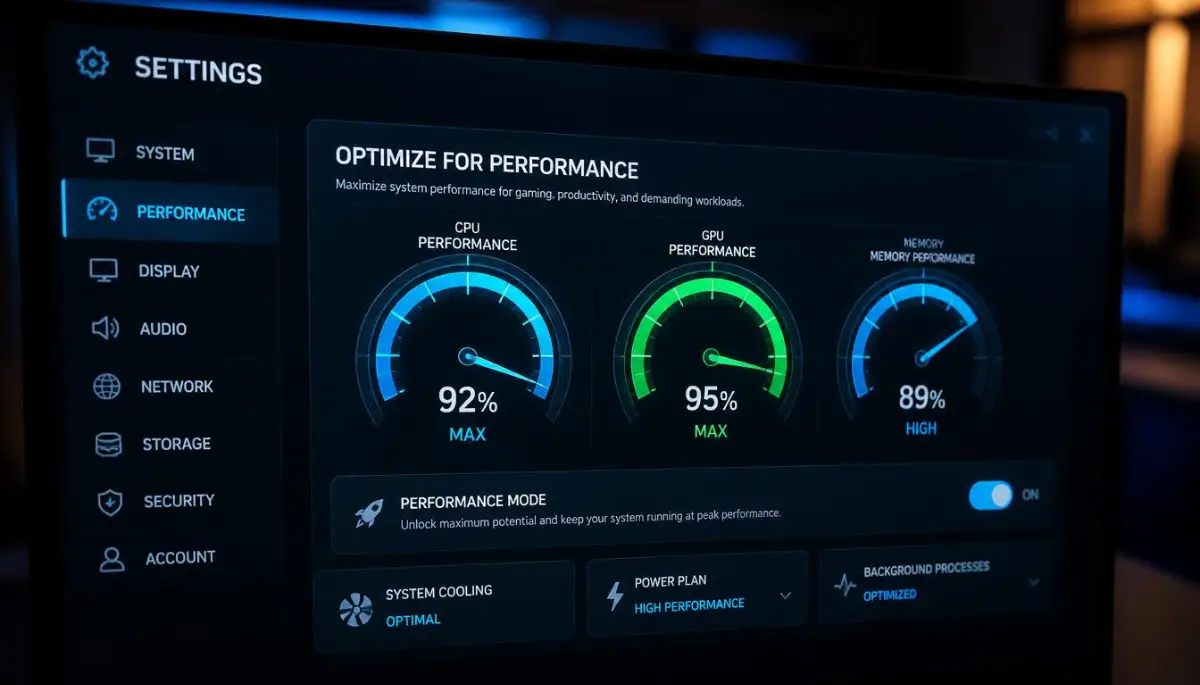
The biggest reason for a slow computer starts the moment you turn it on. Many apps think they are the most important thing on your machine. They set themselves to start automatically as soon as you log in. This creates a massive traffic jam for your processor.
Go to your Task Manager on Windows or Activity Monitor on Mac. Look at the list of "Startup" items. You will likely see things like chat apps, cloud storage tools, and update checkers. Each of these takes a slice of your RAM before you even touch the mouse.
Disable everything that you do not need immediately. You can always open Spotify or Steam later when you actually want to use them. Keeping your startup list clean is like clearing the tracks for a high-speed train. It lets the core system files load first without any competition.
Taming the Background Ghost Processes
Even when you aren't using an app, it might still be running in the shadow. These are called background processes. They sit there, quietly using your CPU and memory. Some are helpful, but many are just wasting resources you could use for your main work.
Open your system settings and look for "Privacy" or "Background Apps." You will be surprised how many tools are running in the back. Turning these off won't stop the apps from working when you open them. It just prevents them from "living" in your RAM 24/7.
I like to think of this as turning off the lights in rooms you aren't using. It saves energy and keeps the whole house running better. When you free up these resources, your active window gets all the attention it deserves. You will feel the difference in how fast your mouse moves and how windows snap into place.
Visual Effects vs. Pure Speed
Modern operating systems look beautiful with their shadows, blurs, and animations. But those pretty effects come at a cost. Your graphics card and processor have to work hard just to make a window look "translucent." If you want speed, you have to trade some of that eye candy.
On Windows, you can find a setting called "Adjust for best performance." This turns off the tiny animations that you barely notice anyway. It might make the windows look a bit more "classic," but the speed boost is worth it. Everything will feel much more "snappy" and direct.
On a Mac, you can reduce transparency and motion in the Accessibility settings. This is a game-changer for older laptops. When the system doesn't have to calculate shadows for every folder, it can focus on loading your files. It’s a simple trade: do you want it to look pretty, or do you want it to work fast?
The Truth About Virtual Memory
Many users don't know that their computer uses the hard drive as "extra RAM" when it runs out of space. This is called a Paging File or Virtual Memory. If your settings are too low or handled poorly, your computer will stutter whenever you open many tabs.
Let the system manage your paging file size, but make sure it is on your fastest drive. If you have an SSD and an old HDD, move the virtual memory to the SSD. This allows the computer to swap data much faster. It prevents those annoying 2-second freezes when switching between apps.
Myth vs. Reality: Does "Cleaning" Your Desktop Help?
Power Plans: Unlocking the Hidden Speed
By default, many laptops are set to "Balanced" or "Power Saver" mode. This is great for your battery, but it literally slows down your processor. It puts a "speed limit" on your computer to save electricity. If you are plugged into a wall, this is totally unnecessary.
Change your power plan to "High Performance." This tells your OS to give the processor as much power as it needs. You will notice that apps open faster and heavy websites scroll more smoothly. Just remember to switch it back if you are traveling and need the battery to last.
For Mac users, this is often handled through "Battery" settings or "Energy Saver." Look for the "Pro Mode" or ensure "Low Power Mode" is turned off when you need to do heavy work. It is like taking the governor off a racing engine; you finally get to see what your hardware can actually do.
Cleaning the Digital Clutter
Every time you browse the web or install an app, your OS creates temporary files. Over months, these files grow into gigabytes of junk. Your computer has to look through all this mess every time it searches for a file. This is why "Disk Cleanup" or "Storage Sense" is so important.
I recommend running a deep clean once a week. Get rid of "Temporary Internet Files," "System Error Memory Dump Files," and "Recycle Bin" content. It’s not just about space; it’s about making the file system lean. A lean system is a fast system.
Pro Tip: If you have an older mechanical hard drive, de fragmenting it is a must. If you have an SSD, never de fragment it—just use the "Trim" or "Optimize" function. This keeps the data cells healthy and fast.
Updating Drivers: The Bridge to Performance
Your operating system communicates with your hardware through drivers. If these drivers are old, the communication is slow and buggy. Sometimes, a simple driver update for your chipset or GPU can increase performance by 10% or more.
Don't just rely on the basic updates from your OS. Go to the manufacturer’s website (like Intel, AMD, or Nvidia) and get the latest version. These updates often include "performance patches" that help the hardware handle modern software better. It’s an easy way to get a "free" upgrade for your system.
Managing Your Storage for Better Flow
If your hard drive is more than 80% full, your operating system will start to struggle. It needs "breathing room" to move files around and store temporary data. When a drive is red-lined, everything slows down because the OS is constantly hunting for a tiny bit of free space.
Try to keep at least 20% of your drive empty. Move your large videos, old photos, and unused games to an external drive or cloud storage. This keeps your main system drive agile. You will notice that file searches and app launches become much more consistent.
The Power of a Fresh Restart
It sounds simple, but many people just "sleep" their laptops for weeks. This causes "memory leaks" where apps keep holding onto RAM they don't need. A simple restart flushes the system completely. It clears out the cobwebs and starts every process from scratch.
I suggest restarting your computer at least once every two days. It resets the system clock and clears the temporary cache. It’s the easiest optimization trick in the book, and it works every single time. It gives your OS a chance to apply small updates and fix minor errors in the background.
Choosing the Right Browser Settings
For most of us, the computer "is" the web browser. If your browser is slow, your computer feels slow. Most browsers today use a huge amount of RAM. You can optimize this by going into your browser settings and turning on "Memory Saver" or "Hardware Acceleration."
Hardware Acceleration allows the browser to use your graphics card to render images and videos. This takes the load off your main processor. Also, limit your extensions. Each extension is like a tiny program running inside your browser. If you don't use it every day, delete it.
Mastering the Deep Layers of System Efficiency
Now that we have covered the basics, it is time to look at the "hidden gears" of your computer. Most users never touch these settings because they look scary. But if you want a machine that feels brand new, you need to go a bit deeper.
One of the most effective tricks is managing your system services. On Windows, these are tiny programs that run in the background from the moment you start your PC. Many of them are for things you might never use, like fax services or remote desktop sharing.
To see these, you can type "Services.msc" into your search bar. Be careful here; you don't want to turn off something that makes your internet work. Look for items that are set to "Automatic" but aren't necessary for your daily tasks.
Setting these to "Manual" means they only start when you actually need them. This saves a surprising amount of CPU power. It is like telling the background staff in an office to only come in when there is work for them to do.
If you are a Mac user, you should look into your Launch Agents and Launch Daemons folders. These folders hold the "instructions" for apps that want to start up automatically. Cleaning these out can make your Mac feel much lighter during a long work session.
Managing your digital life requires a fast machine, especially when you are handling sensitive tasks. For instance, if you are working on a plan for how to rebuild your credit score after a major financial disaster, you need a responsive browser. A lagging computer can lead to mistakes when filling out important financial forms.
The Power of the Registry and Terminal
The "Registry" on Windows is like a giant map of every setting on your computer. Over time, this map gets messy with broken paths and old entries from apps you deleted long ago. While I don't suggest using "registry cleaners," you can manually check for startup bloat.
Advanced users often use the Command Prompt or Power Shell to run system file checks. Running the "sfc /scannow" command is a great way to find and fix corrupted files. These tiny errors often cause the "micro-stutters" you feel when moving files or opening folders.
On a Mac, the Terminal is your best friend for deep cleaning. You can clear out the system cache and reset the SMC (System Management Controller). This often fixes issues with fans running too loud or the system feeling sluggish for no reason.
According to technical documentation from Microsoft Support, keeping your system files healthy is the best way to avoid a total crash. It is much easier to spend ten minutes on maintenance than three hours trying to recover a broken OS.
Optimizing Your Network Stack
Did you know that your internet settings can actually slow down your whole computer? If your network settings are not optimized, your browser will constantly "wait" for data. This makes the whole operating system feel like it is dragging.
You can flush your DNS cache to clear out old web addresses that might be slowing down your connection. This is like clearing out an old phone book so your computer can find the right "number" faster. A clean network path makes everything from streaming to gaming feel much smoother.
Using a fast computer is not just about productivity; it is also about your health. When your tech works well, you have less stress and more time to focus on your well-being. You might find more time to learn why your gut bacteria holds the secret to a stronger immune system instead of fighting with a frozen screen.

Hidden Traps That Kill Your Computer Speed
When your computer gets slow, it is easy to feel desperate. This desperation often leads people to make mistakes that actually make the problem worse. One of the biggest traps is downloading "Free PC Speed Up" software.
Most of these tools are just bloatware in disguise. They use up more resources than they save and often show you fake "errors" to scare you. The best tools for your computer are already built into the operating system by the people who made it.
Another big mistake is ignoring the physical heat of your machine. If your laptop feels hot to the touch, it will automatically slow down to protect itself. This is called "thermal throttling." You can have the best settings in the world, but if your computer is overheating, it will still crawl.
Keep your vents clean and use your laptop on a hard, flat surface. If you use it on a bed or a pillow, you are choking the fans. It is a simple physical issue that no software setting can fix. Treat your hardware with respect, and it will give you the speed you need.
The Danger of "Over-Cleaning"
Some people get obsessed with deleting files and end up deleting something important. Never touch folders like "System32" on Windows or the "Library" folder on Mac unless you are an expert. Deleting one small file can turn your fast computer into a "brick" that won't even turn on.
I have seen many people try to "overclock" their computers without knowing the risks. While it can make things faster, it also generates more heat and can cause permanent damage. Unless you have a professional cooling system, it is better to stick to OS optimizations.
When we are stressed about money or work, we often make quick, uneducated guesses. Whether you are wondering is buying a home smarter than renting the real money facts or trying to fix a PC, you should always look at the data first. Don't let frustration drive your technical decisions.
Why "One-Click" Solutions Usually Fail
A real expert knows that every computer is different. There is no such thing as a "magic button" that fixes everything. A "one-click" fix might work for one person but cause a blue screen for another.
Always take the time to understand what a setting does before you change it. If a website tells you to "delete everything in your Temp folder," make sure you know what is currently stored there. Being careful is the only way to ensure your data stays safe while you hunt for more speed.
If you ever feel overwhelmed, take a break. Researching tech tips is a lot like learning about law or insurance. You need a clear head to understand the ultimate roadmap to personal injury claims or how to fix a registry error. Slow and steady wins the race when it comes to system maintenance.
Your New Path to a Smooth Computing Life
You now have a complete toolkit to make your computer run at its absolute best. It is a wonderful feeling to use a machine that responds to your every command without hesitation. This is not just about "tech"; it is about respecting your own time and energy.
I want you to think of your operating system as a digital garden. If you pull the weeds once a week, it stays beautiful and productive. If you let it go for a year, it becomes a mess that is hard to fix.
Make it a habit to run a quick cleanup every Sunday evening. Empty the trash, check your startup apps, and give the system a fresh restart. These small steps will keep you from ever needing to read a "how to fix a slow computer" guide ever again.
Your Immediate Action Plan
Start by picking just one thing we talked about today. Maybe you can go and disable those background apps right now. Once you feel that small boost in speed, you will be motivated to do the rest.
You don't need to be a "computer person" to have a fast computer. You just need to be a proactive user who knows where the "clutter" hides. Your hardware has so much untapped potential waiting for you to find it.

![7 Hidden Ways Your Smartphone Ruins Your Sleep [Fix It Tonight]](https://topic36.com/storage/uploads/blogs/1787199601_7-hidden-ways-your-smartphone-ruins-your-sleep-fix-it-tonight.webp)